.png)
How to Apply for LUT under GST
Lets understand what is LUT in GST and how to apply for it? The full form of LUT is Letter of Undertaking. It is a document that exporters can file to export goods or services without having to pay taxes. Under the new GST regime, all exports are subject to IGST, which can later be reclaimed via a refund against the tax paid.
The Letter of Undertaking (LUT) is prescribed to be furnished in form GST RFD 11 under rule 96A, whereby the exporter declares that he/she would fulfil all the requirements prescribed under GST while exporting without making IGST payment.
Lets see how to apply for LUT.
1. Go to www.gst.gov.in
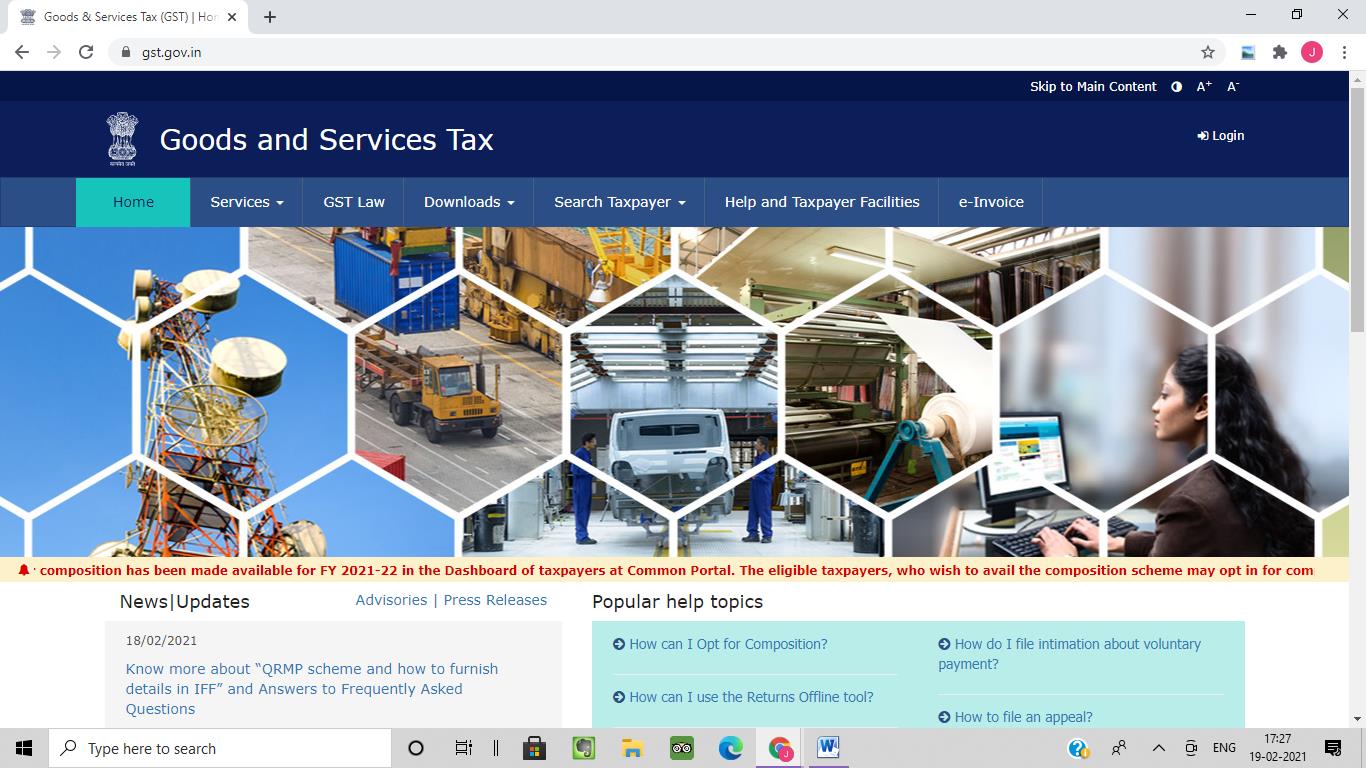
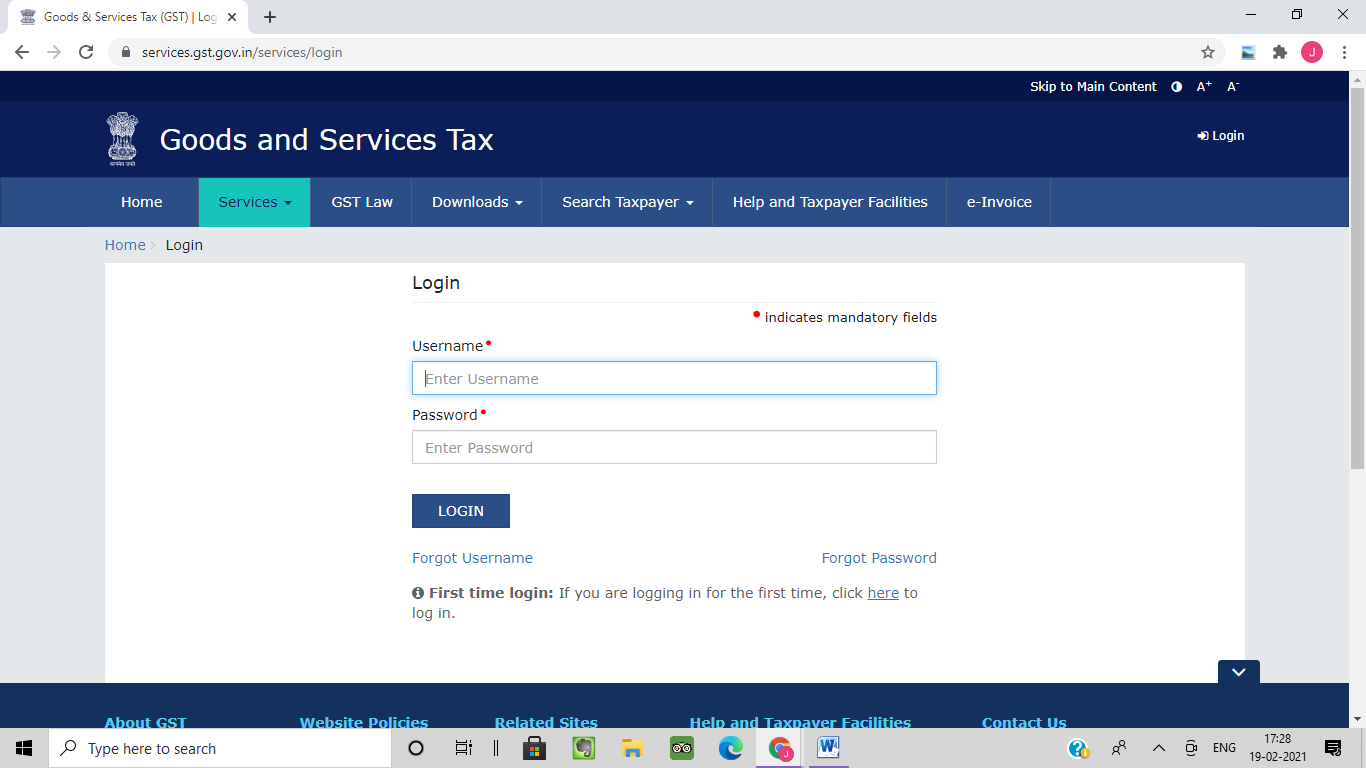
2. Login with your Credentials which is your Username and Password

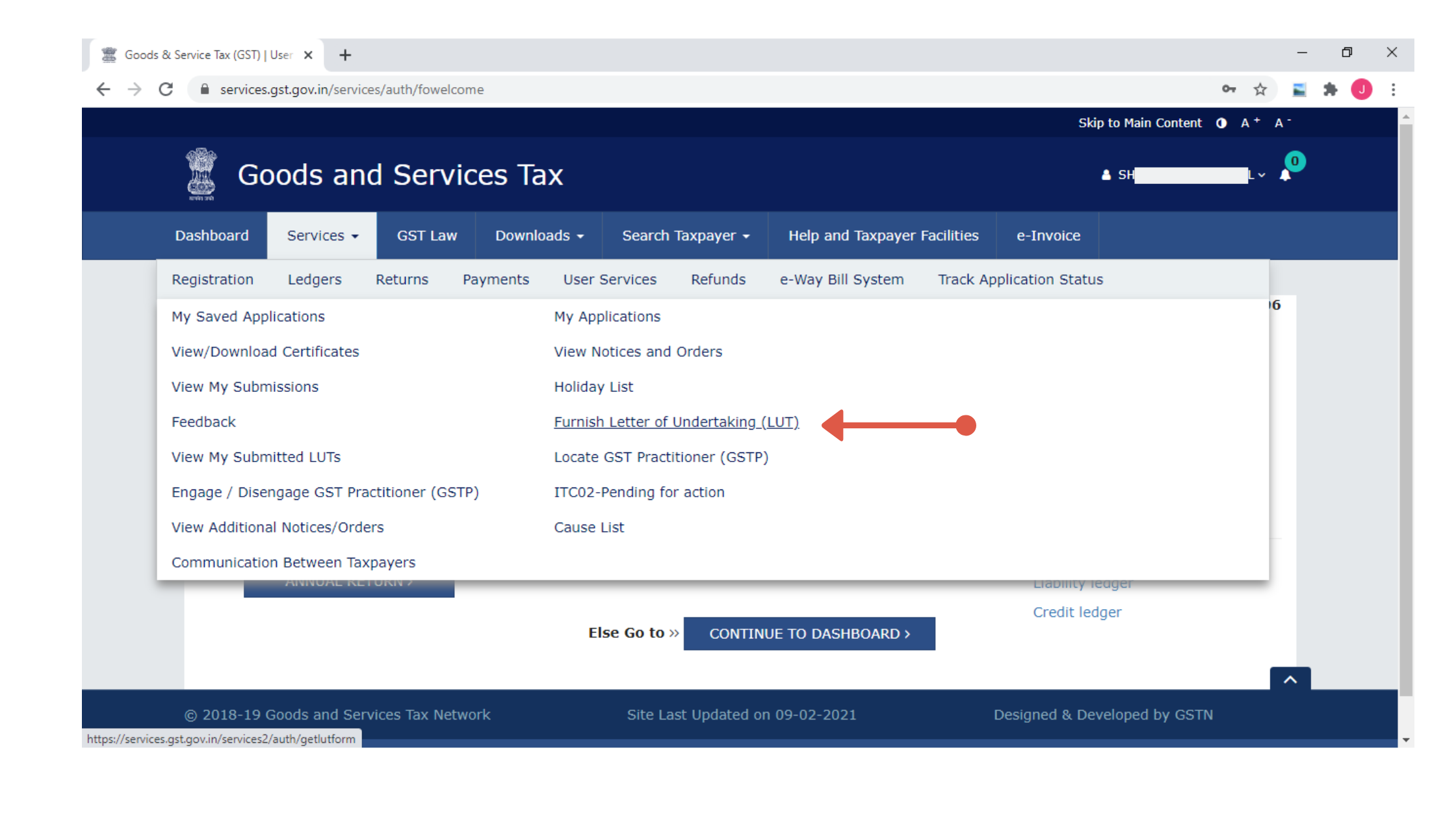
3. Go to Services tab at the top ribbon and click on ' Furnish Letter of Undertaking (LUT)
4. Select the Financial year, 2021-22. Here you need to attach last years LUT Certificate.
.png)
5. For finding last years LUT, go to Services Tab in top ribbon and go to 'View my submitted LUTs'.
.png)

6. Select Application Type as 'Letter of Undertaking' and date range of 3 months. Click on the ARN to go to next page.
.png)
7. Now you can Download the last years LUT certificate.
.png)
8. Upload the last years certificate as shown below.
.png)
9. Select all the conditions
.png)
10. Put witness details for 2 persons like their name and address.
.png)
11. Dont forget to save the details.
.png)
12. You get a success message and you can retrieve the details later too.
.png)
13. Now you can file the application with
a) DSC or
b) EVC (OTP)
.png)
14. You will get warning where you can now proceed.
.png)
15. OTP will be sent to registered mobile number and email id. Please enter it and verify.
.png)
16. You will get success message and acknowledgement. ARN will be generated. You can download the certificate.
.png)
Eligibility for Export under LUT
All GST registered goods and service exporters are eligible to submit LUT except the exporters who have been prosecuted for any offence and the amount of tax evasion exceeds Rs.250 lakhs under the CGST Act or the Integrated Goods and Services Tax Act,2017 or any of the existing laws. In such cases, where the exporter is not eligible to file LUT, they would have to furnish an export bond.
FAQ Related to Filing of Letter of Undertaking (LUT in GST)
1. Who has to furnish a Letter of Undertaking?
Any registered person availing the option to supply goods or services for export /SEZs without payment of integrated tax has to furnish, prior to export/SEZs supply, a Letter of Undertaking (LUT), if he has not been prosecuted for tax evasion for an amount of Rs 2.5 Crore or above under the CGST Act/IGST Act/Existing law. Example of transactions for which LUT can be used are:
2. How can I file LUT?
All registered taxpayers who have zero-rated supply of goods or services have to furnish LUT in Form GST RFD-11 on the GST Portal before affecting such supply. Access the GST portal and login using valid credentials. Navigate to Services > User Services > Furnish Letter of Undertaking (LUT) command to file LUT.
3. What is to be filled in LUT?
GSTIN and Name (Legal Name) of the Taxpayer would get prefilled based on login. Taxpayer needs to select the financial year for which LUT is being filed, enter the name, address and occupation details of two independent and reliable witnesses. Taxpayer also needs to select all the points of self-declaration before filing the LUT.
4. What if I have already furnished a LUT and also got approval for it?
If a taxpayer has any LUT which was furnished manually and got approved by the Tax Authority for current Financial Year, then he can upload that LUT and file this online application for furnishing LUT to seek the online approval for that previous LUT.
5. Is it mandatory to record the manually approved LUT in online records?
It is not mandatory, but if you want to record the manually approved LUT to be available in online records then you can furnish it with online applicatio
6. Is there any limitation regarding the upload of previous LUT?
Only one previous LUT document not exceeding 2 MB in size can be uploaded in one application. To upload another LUT, taxpayer needs to file a new application.
7. Can I as a taxpayer save the LUT application during the process of filing?
Taxpayer will have the facility to save the application at any stage for 15 days. Saved application can be retrieved from Dashboard > Services > User Services > My Saved Applications.
8. Can I preview the LUT application?
Before signing and filing the application, taxpayer will have an option to Preview the application and save it in PDF format.
9. Who has to sign the LUT application?
Primary authorized signatory/Any other Authorized Signatory needs to sign and file the verification with DSC/EVC. Authorized signatory can be the working partner, the managing director or the proprietor or by a person duly authorized by such working partner or Board of Directors of such company or proprietor to execute the form.
10. How would I know that the process of furnishing LUT has been completed?
After successful filing, system will generate ARN and acknowledgement. You will be informed about successful filing via SMS and Email and you can also download the acknowledgement as PDF.
11. Can I view my LUT application after filing?
Navigate to Dashboard > Services > User Services > View Additional Notices/Orders to reply to notice issued by Tax Official.
14. From where can I view the order issued by Tax Official?
Navigate to Dashboard > Services > User Services > View Additional Notices/Orders to view the order issued by Tax Official.
Disclaimer: The information contained in this website is for general information purposes only. The information is provided by PracticeGuru and while we endeavour to keep the information up to date and correct, we make no representations or warranties of any kind, express or implied, about the completeness, accuracy, reliability, suitability or availability with respect to the website or the information, products, services, or related graphics contained on the website for any purpose. Any reliance you place on such information is therefore strictly at your own risk. In no event will we be liable for any loss or damage including without limitation, indirect or consequential loss or damage, or any loss or damage whatsoever arising from loss of data or profits arising out of, or in connection with, the use of this website.
Grow your practice with PracticeGuru




Write for PracticeGuru
Send your articles to [email protected]. We publish them on our website with credit to you. Read all articles.
